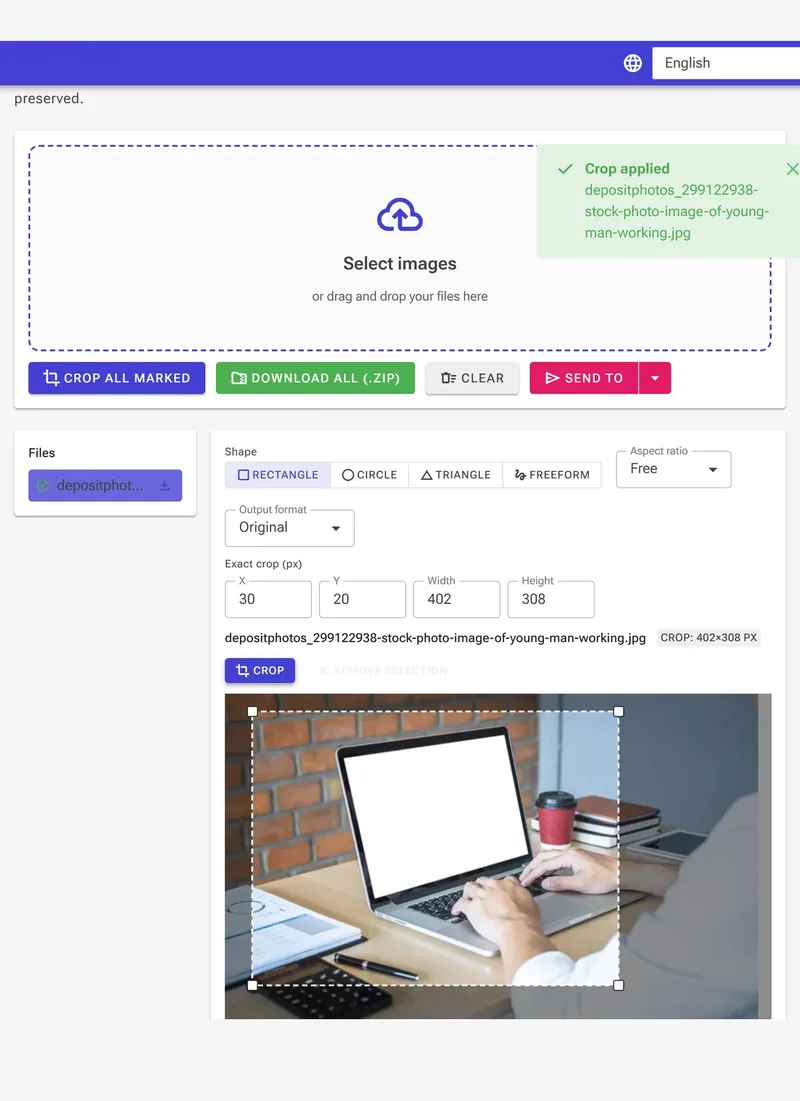
Free Image Cropper — Private, Unlimited, No Upload
or drag and drop your images here
Crop any image online for free, with no limits and no signup. Drag a crop box, type exact pixel dimensions, pick a ready-made aspect ratio, or cut to a circle or custom shape — then download in seconds. Everything runs inside your browser, so your photos never get uploaded to a server and stay completely private.
100% free · Unlimited crops · No uploads · No watermark
Why This Image Cropper Is Different
Plenty of "free" croppers upload your photo to their servers, limit you to a single file, slap on a watermark, lock shape-cropping behind a paid plan, or make you sign in first. This one doesn't.
Your images never leave your browser. Cropping happens locally on your own device. Nothing is uploaded, stored, or "deleted after 24 hours" — your photo stays on your computer or phone the whole time. That makes it safe for ID photos, client work, screenshots, and anything private.
No limits and no signup. Crop as many images as you want, as often as you want — no file-count cap, no daily quota, no account, and no watermark on the result. Drop several photos and crop them in one session.
Crop exactly how you need to. Drag the crop box freely, enter precise width, height, and position in pixels, or snap to a preset aspect ratio (1:1, 4:3, 3:2, 16:9, 9:16, and more) for pixel-perfect framing every time.
Shape crops, not just rectangles. Cut your image into a circle for a profile picture or logo, a triangle for design elements, or a freehand outline — and export a transparent PNG so everything outside the shape is cleanly removed. No background-removal software needed.
Quality stays intact. Cropping keeps the original resolution of the area you keep, so your result stays as sharp and detailed as the source.
How to Crop an Image
- Add your image. Drag and drop a JPG, PNG, or WebP, or click to select one from your device.
- Set your crop. Drag the crop box to frame your subject, type exact pixel dimensions, choose an aspect ratio, or pick a shape like circle or triangle. Preview updates live.
- Download. Save your cropped image instantly — as a JPG, PNG (with transparency for shape crops), or WebP.
No software, no plugin, no account — it works in any browser on Windows, macOS, Linux, Android, and iOS.
Crop for Anything
The right crop sharpens composition and makes an image fit perfectly wherever it goes:
- Social media — frame posts, stories, thumbnails, headers, and covers to the exact ratio for Instagram, Facebook, X/Twitter, YouTube, LinkedIn, and Pinterest.
- Profile pictures & avatars — circle-crop a headshot to a clean round image with a transparent background.
- E-commerce — trim product photos to consistent, distraction-free framing for Amazon, Etsy, eBay, and Shopify.
- Websites & blogs — cut images to banner and featured-image dimensions that fit your layout.
- Print & documents — crop to exact sizes for flyers, photo prints, passport-style photos, and forms.
- Design & collages — use shape and freeform crops to build scrapbook layouts, cards, and graphics a plain rectangle can't.
Crop, Reframe, Reshape
Cropping is the fastest way to fix composition: remove distracting backgrounds, straighten a subject, cut to a required size, or change the aspect ratio for a new platform. Unlike resizing — which scales the whole image — cropping removes the parts you don't want and keeps the rest at full resolution, so the area you keep stays crisp. With drag-to-crop, exact pixel entry, preset ratios, and shape cutting all in one place, you get precise control whether you're framing a single photo or preparing images for several channels at once.
Step-by-Step Tutorial: Crop an Image (With Screenshots)
Learn how to crop images using every available option — rectangle, aspect ratio, circle, and freeform — entirely in your browser.
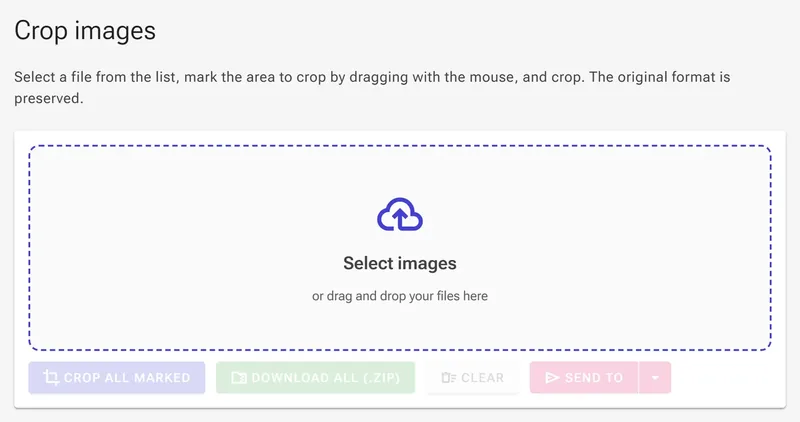
1Add your images
Click Select images or drag and drop one or more photos onto the upload area. Your files never leave your device.
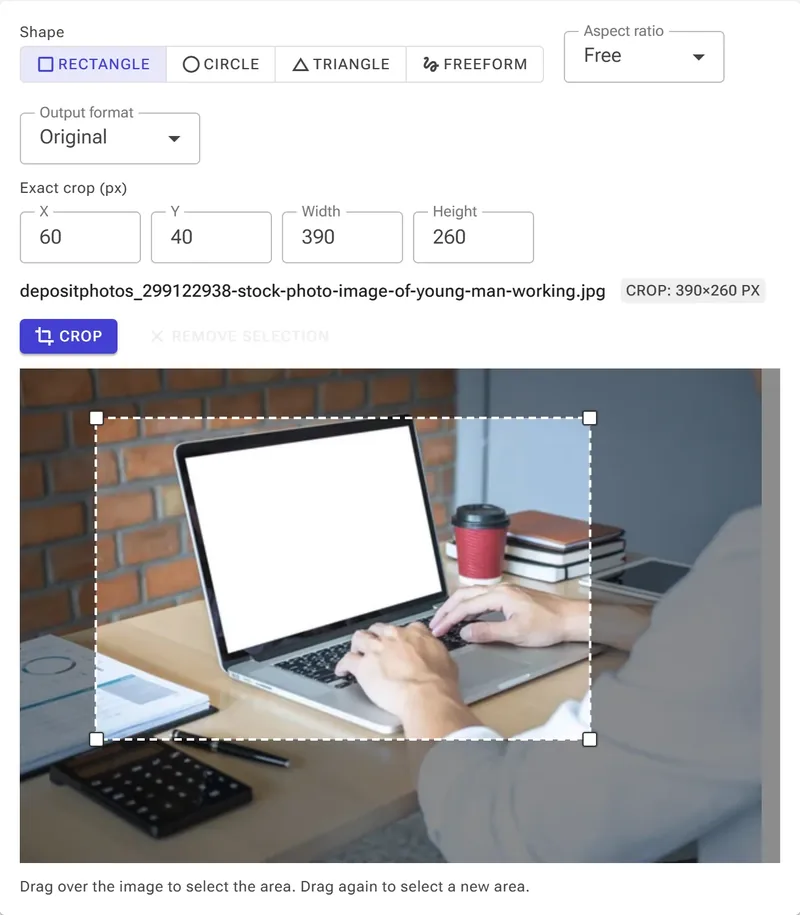
2Draw a rectangle crop
With Rectangle selected, drag across the image to set a free crop region. Dashed lines show the crop boundary.
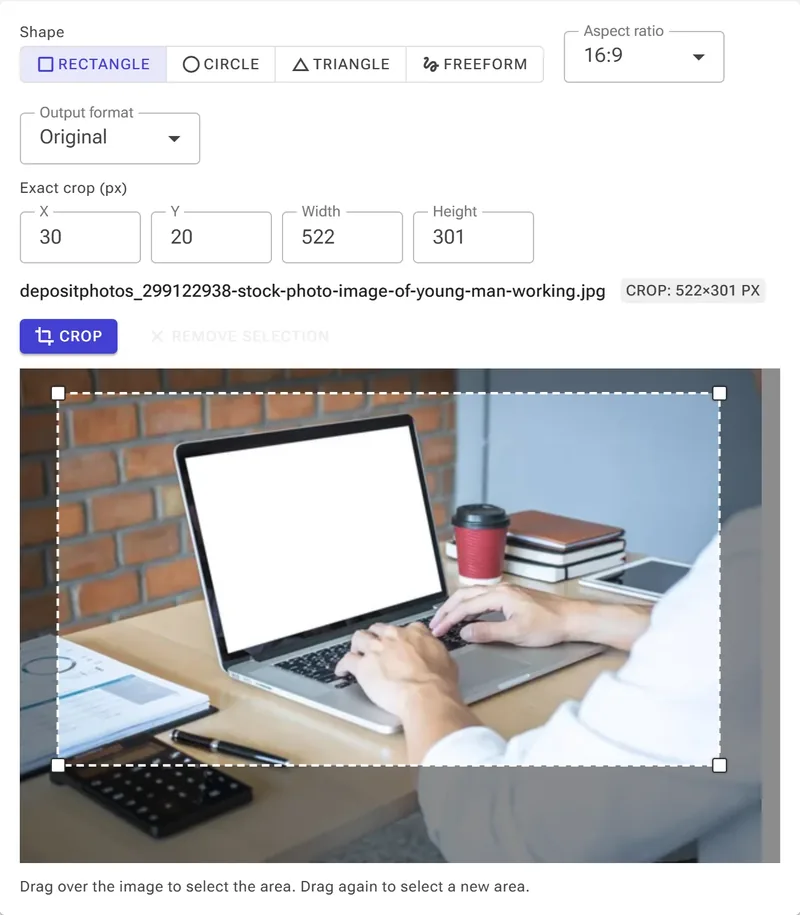
3Lock an aspect ratio
Open the aspect-ratio dropdown and choose a preset such as 16:9. The crop box snaps to that ratio as you drag.
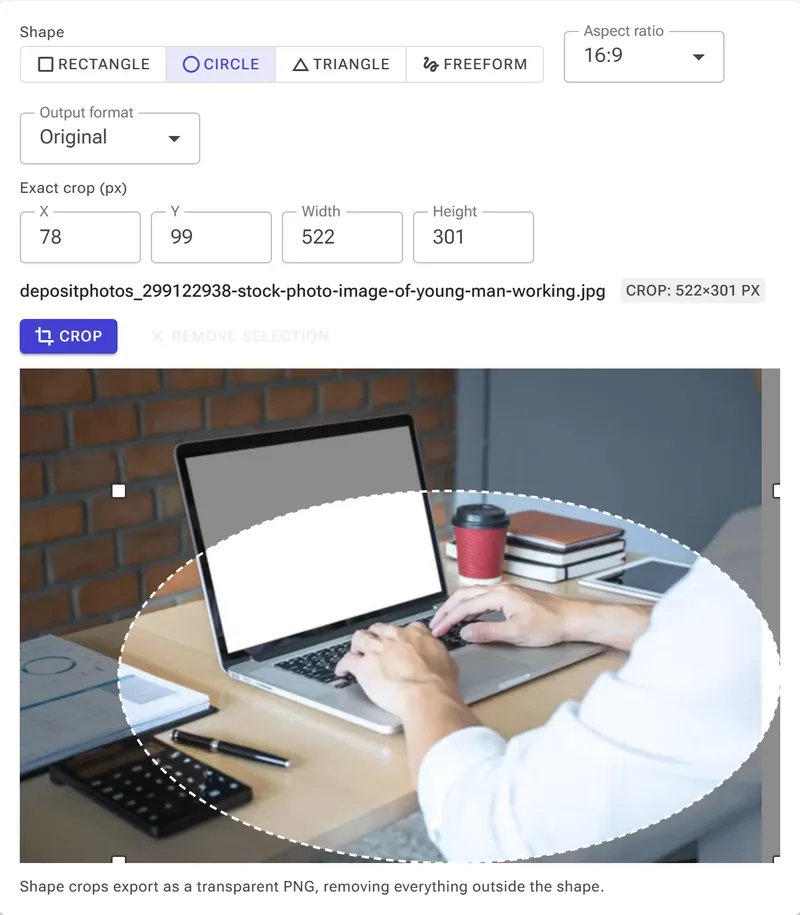
4Crop to a circle
Click Circle in the shape bar. Drag across the image to place an elliptical crop. Export as PNG to get a transparent background.
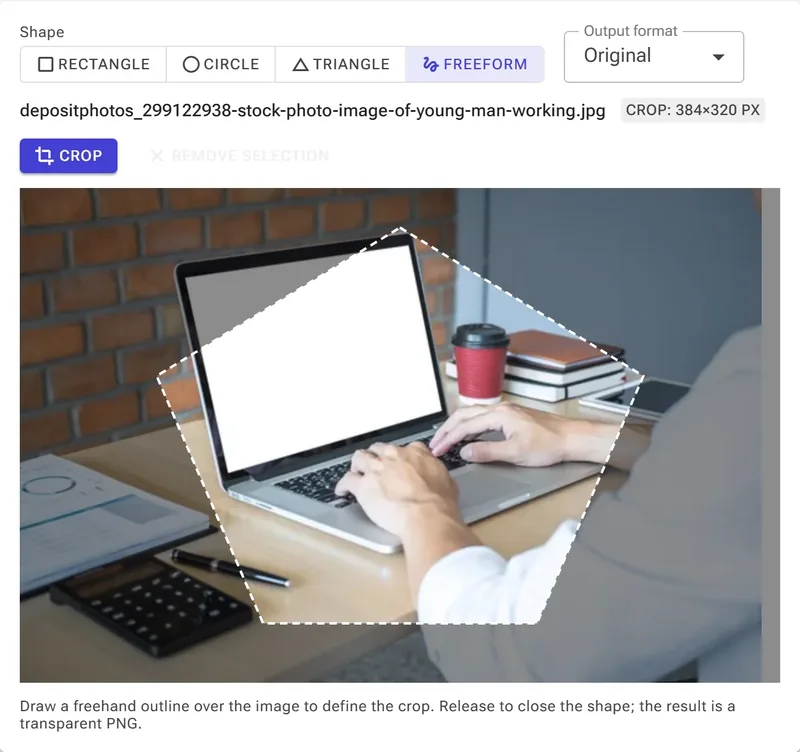
5Draw a freeform shape
Click Freeform and draw any outline on the image — a pentagon, an arrow, or any custom polygon. The fill area is preserved; everything outside is removed on export.
6Apply and download
Click Crop to apply. The cropped result appears in the file list on the left. Download your image as JPG, PNG, or WebP.